Paste and examples
Not every login can be recorded live. Then paste what you have – a SAML Response from a support ticket, a token from a log, a HAR from the DevTools or the error message on screen. AuthTailor works out by itself what it is.
- Tab
- Auth Trace
- Files
- up to 60 MB: .har, .json, .xml, .txt, .log, .jwt
- Storage
- memory only
- Examples
- five, with made-up data
The paste field
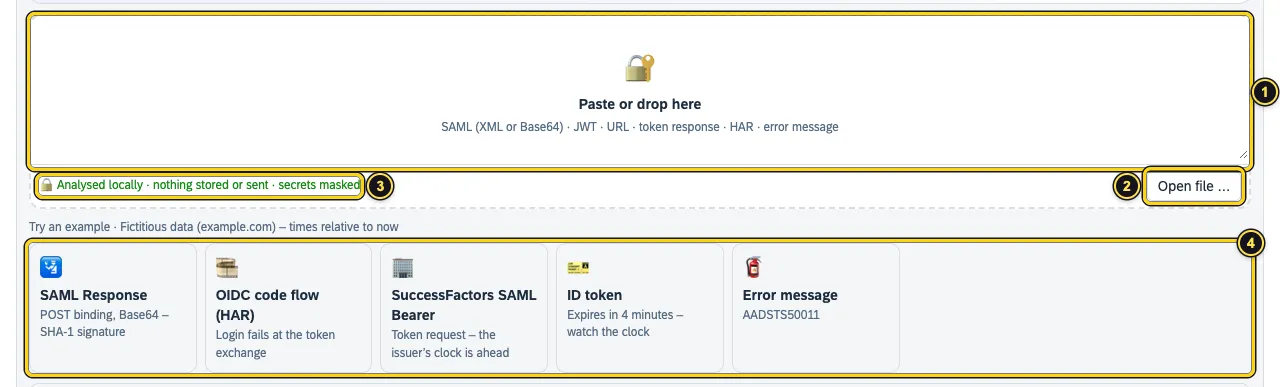
- Paste or drop here: paste text with Ctrl+V or ⌘+V, or drag a file onto it.
- Open file … picks a file of up to 60 MB. Very long input is shown shortened, but everything is checked.
- “Analysed locally · nothing stored or sent · secrets masked” – the check runs in the panel.
- Try an example: SAML Response, OIDC code flow (HAR), SuccessFactors SAML Bearer, ID token and Error message, all with made-up data and times relative to now.
What AuthTailor recognises
| Input | Examples |
|---|---|
| SAML | Response, request, assertion, logout, metadata – as XML or Base64, also URL-encoded or deflated from the redirect binding |
| JWT | ID token, access token, logout token, DPoP proof |
| OAuth and OIDC | Login URL (/authorize), callback with code and state, logout URL, token request, token response, discovery, JWKS |
| HAR | Export from the DevTools with the whole flow – including response bodies that the live capture does not have |
| Error message | Text with a known code, for example AADSTS50011, invalid_grant or a SAML status |
After pasting, Recognised: below the field shows what AuthTailor found. Passkey responses, certificates, CSP or CORS belong in Tools, SAP tokens and SAP configuration in SAP.
Check a SAML Response
- Copy the value of
SAMLResponse– from the form POST in the DevTools, from a log or a ticket. - Paste it into the field. AuthTailor decodes Base64 by itself.
- Read the verdict, the rating and the SAML Response card. Clear empties the field again.
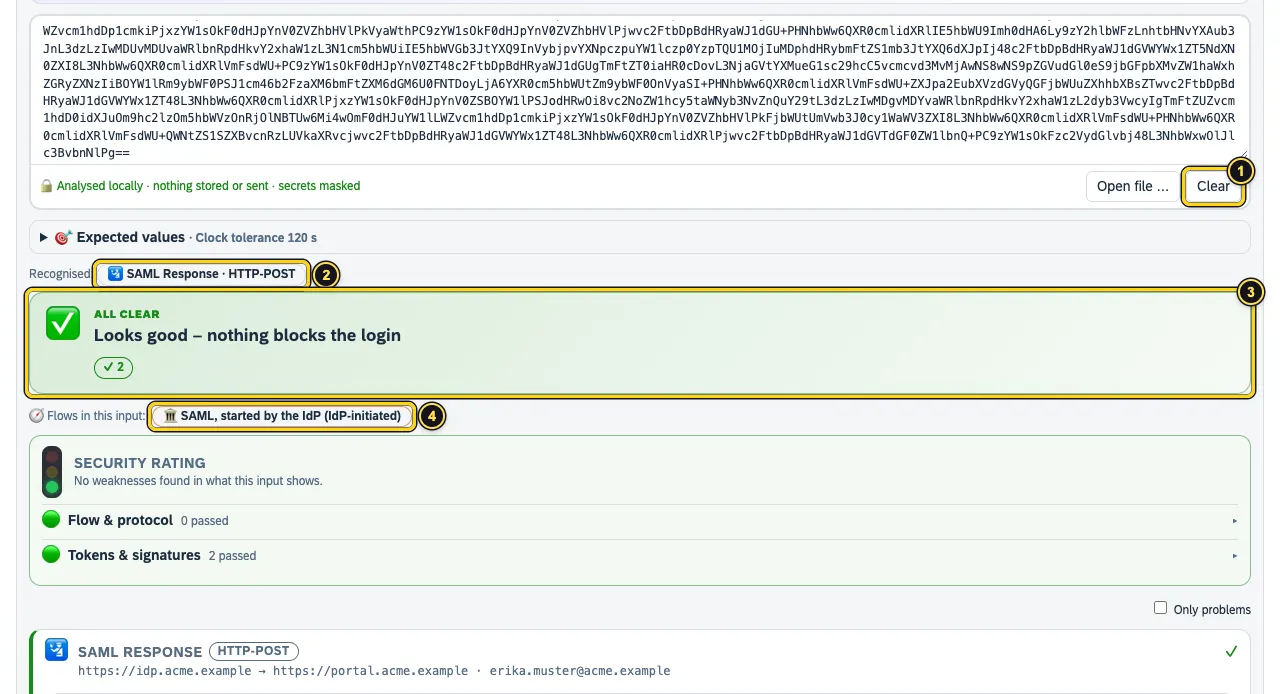
- Clear removes the input.
- Recognised: SAML Response · HTTP-POST.
- The verdict: All clear – the signature is valid, times and receiver match.
- Flows in this input: without the matching AuthnRequest, AuthTailor assigns the response to the flow SAML, started by the IdP (IdP-initiated). A click opens the explanation in Learning.
The card below with anatomy, chain of trust and certificate is explained in Tokens and SAML.
Paste a HAR
A HAR contains the whole flow including response bodies, so also the token response. This is how to export it:
- Open the DevTools (F12), tab Network, switch on Preserve log.
- Go through the login.
- Right-click the list and choose Save all as HAR.
- Drag the file onto AuthTailor’s field.
Expected values
Many logins fail on a single character – a missing slash in the entity ID, a different client ID. Under Expected values you enter what your app expects. AuthTailor compares it character by character with the message.
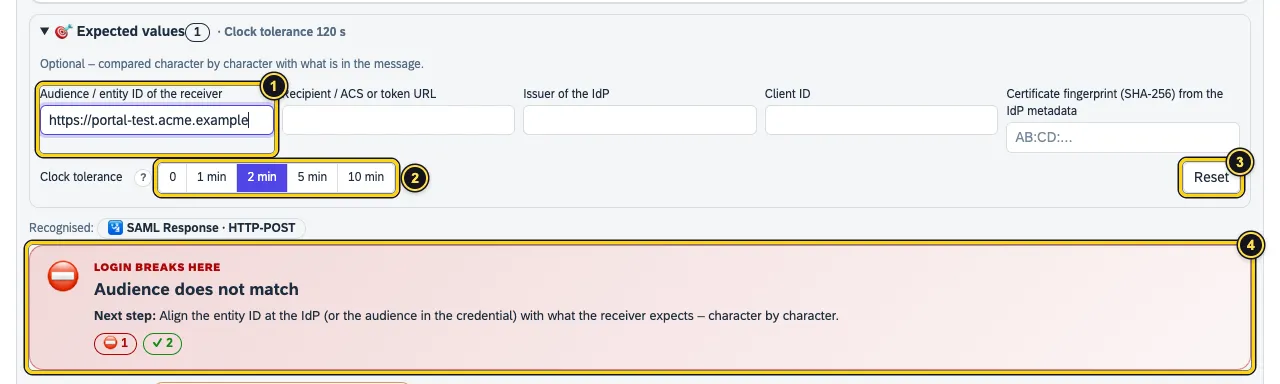
- The fields Audience / entity ID of the receiver, Recipient / ACS or token URL, Issuer of the IdP, Client ID and Certificate fingerprint (SHA-256) from the IdP metadata. All are optional.
- Clock tolerance: 0, 1, 2, 5 or 10 minutes. That is how far the clocks of issuer and receiver may differ. The default is 2 minutes.
- Reset empties all fields. After a recording, Take from the recording fills in the values found.
- The verdict that the audience does not match, with the next step.
With the fingerprint from the metadata you check that the message really was signed with your IdP’s certificate – and not just with any certificate that comes along in the message.
Paste an error message
If the login only shows an error message, paste it. The catalogue of known errors knows codes from Entra ID, SAP, OAuth and SAML.
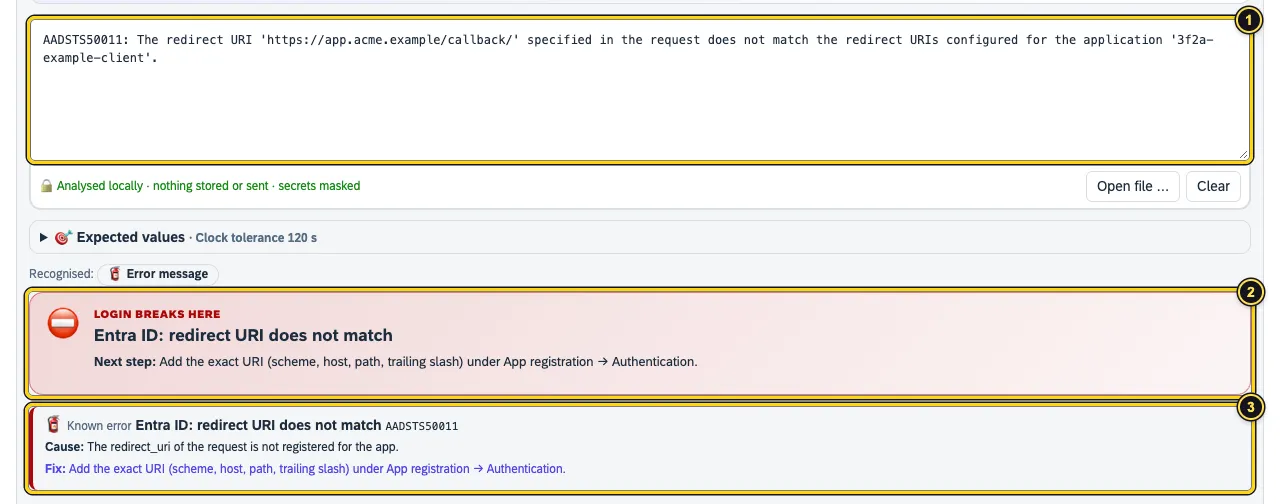
- The error message in the field – here the built-in example.
- The verdict with the next step.
- Known error with code, Cause and Fix. Search the whole catalogue in Learning.
See also
- Features at a glance Features · Auth Trace
- Docs Reading the result
- Docs Tokens and SAML
- Docs Tools
- Sources Paste or drop1 · In memory only2